Last updated: June 28, 2026
MovieElse allows users to create an account using email/password, Google Sign-In, or Sign in with Apple where available. Users can manage and delete their account-related data directly inside the app.
Delete Your MovieElse Account
You can delete your MovieElse account from the Profile tab in the app.
Steps to delete your account
- Open the MovieElse app.
- Go to the Profile tab from the bottom navigation bar.
- Make sure you are signed in to your account.
- Tap Delete account.
- A confirmation dialog will appear.
- Complete the required confirmation or re-authentication step, if requested.
- Tap Yes, Delete Account to confirm.
When your account is deleted, the following data associated with your account will be permanently deleted:
- Account information
- Profile information
- Display name or nickname
- Reviews and comments
- Ratings
- Authentication account
- Other account-related data stored by MovieElse
This action cannot be undone.
Delete Reviews Without Deleting Your Account
MovieElse also allows users to delete their own reviews without deleting their account.
Steps to delete your review
- Open the MovieElse app.
- Sign in to your account.
- Open the movie or TV series detail page where you submitted a review.
- Find your review in the Reviews section.
- Tap the delete icon next to your review.
- Confirm the action by tapping Delete.
Only your own reviews can be deleted from your account.
Request Account Deletion Without Accessing the App
If you cannot access the MovieElse app, you can request account deletion by contacting us at:
Please include the email address associated with your MovieElse account so we can identify and process your request.
If you created your account using Sign in with Apple and chose Hide My Email, please include the Apple private relay email address associated with your MovieElse account.
Account deletion requests are reviewed and processed as soon as possible. Once the deletion is completed, your account and related data will be permanently removed, except for any information that must be retained for legal, security, fraud-prevention, or technical reasons.
Screenshot Guide
The screenshots below show where account and review deletion options are located in the MovieElse app.
Screenshot 1: Profile tab
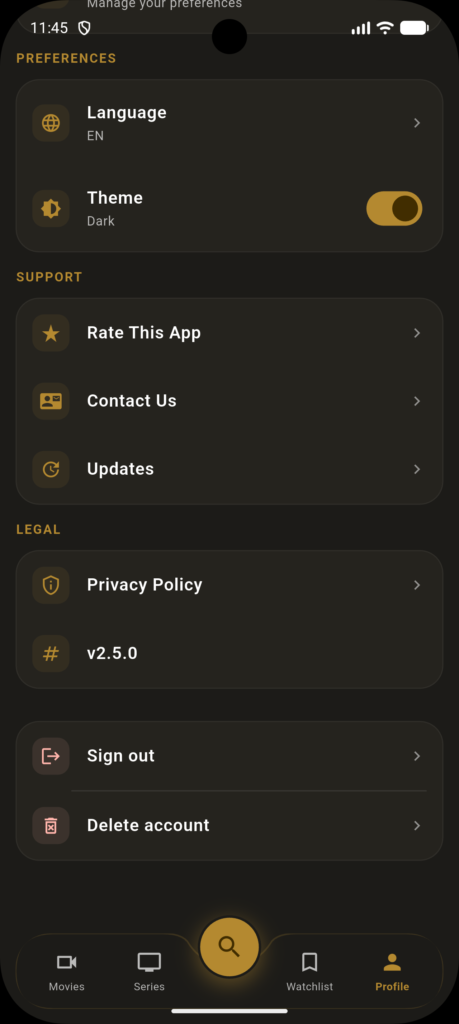
Users can access the account deletion option from the Profile tab. The Delete account button is located near the bottom of the profile screen.
Screenshot 2: Delete account confirmation
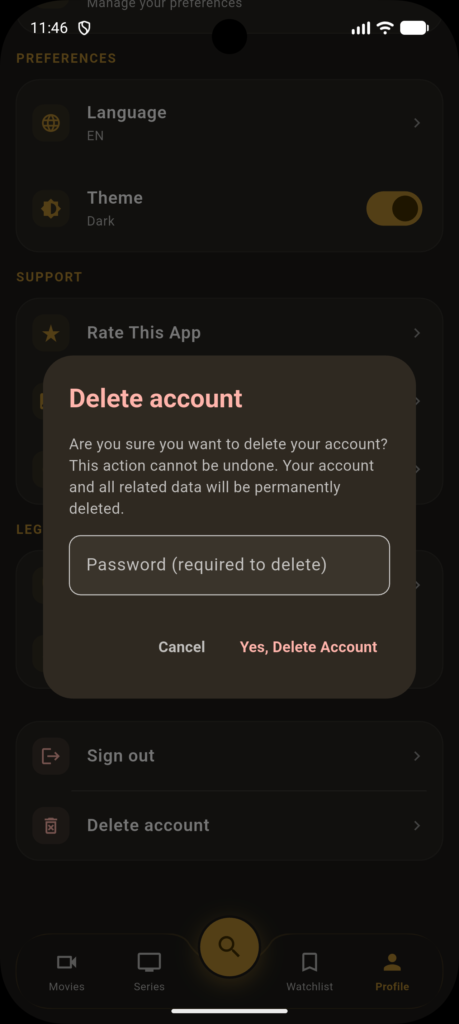
After tapping Delete account, a confirmation dialog appears. Users must confirm the deletion before the account and related data are permanently removed.
Screenshot 3: Review section
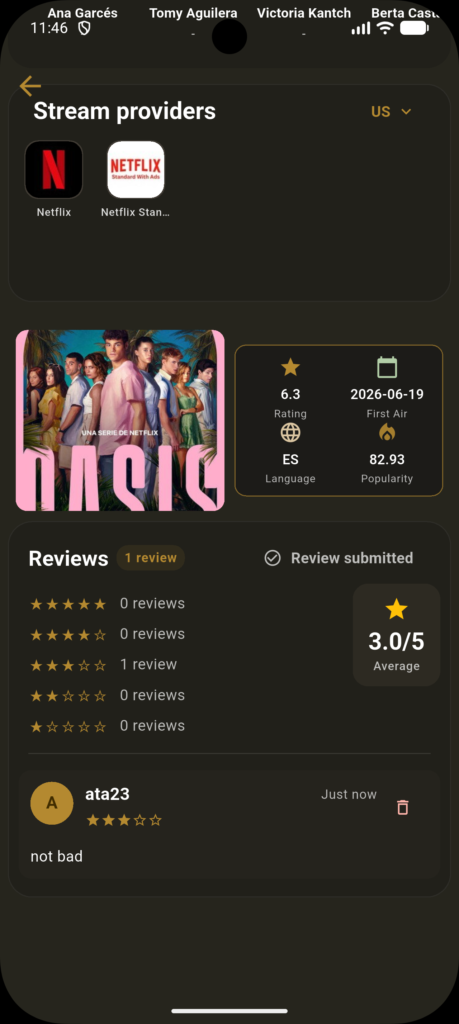
Users can find their submitted reviews in the Reviews section of a movie or TV series detail page.
Screenshot 4: Delete review confirmation
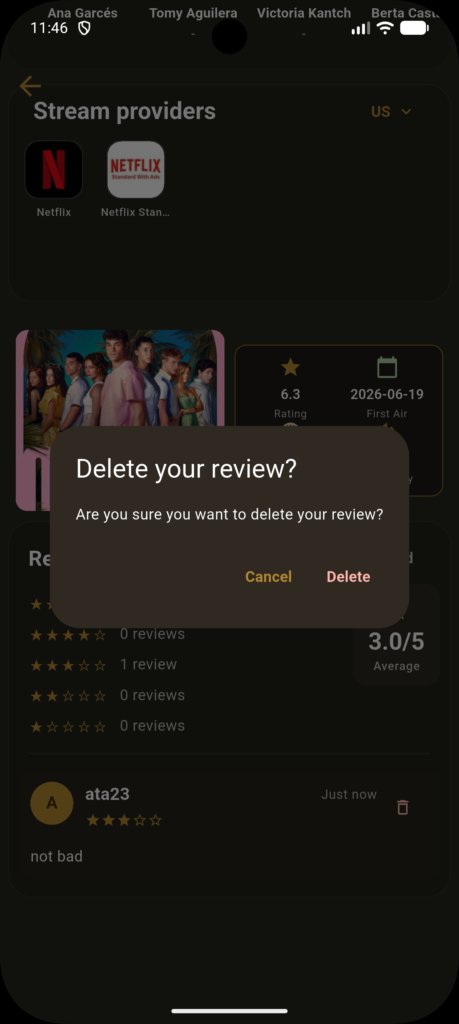
Users can delete their own review by tapping the delete icon and confirming the action in the delete review dialog.